.png?width=300&height=77&name=black-logo%20(1).png)
Overview & Explanation
Keeping track of changes is essential for maintaining accuracy and accountability within your team. Whether you need to double-check a detail or ensure you are using the most recent safety document, the system makes it easy to verify the history of a form.
We automatically record three key pieces of information every time a form is saved:
-
Who made the change.
-
When the change happened.
-
What the specific version number is.
You can find this information in three distinct locations depending on your workflow.
How It Works
Here is how to locate update details across the platform and on exported documents.
1. On the Main Details Page
This is the quickest way to get a "status check" before you start working.
-
Navigate to your list of forms and click on the specific form you wish to view.
-
Look immediately at the top of the screen.
-
You will see the Current Version Number and the Last Modified Date displayed clearly.
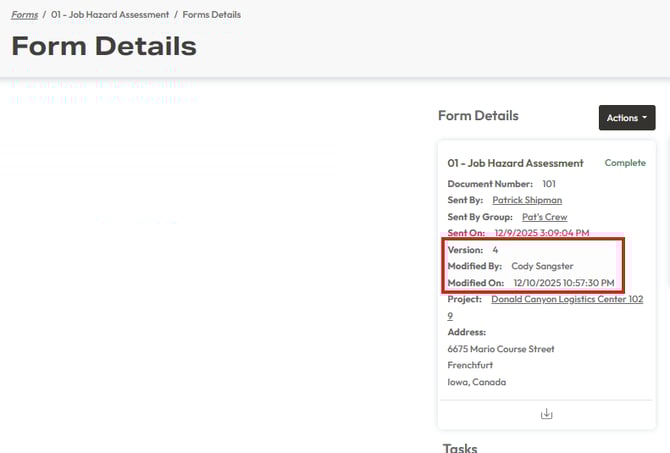
If you do not see a Version Number, it means no edits have been made to the original document and only a single version exists. The section above will only appear once at least one edit has been made to the form.
2. In the Form's Version History
If you need a detailed audit trail of every change ever made to the form, use the Version History.
-
Open the form you wish to investigate.
-
Click on the Version History link (located under the Actions dropdown).
-
A list will appear showing every time the form was saved. Each entry includes:
-
Version Number: (e.g., Version 1.0, 1.1).
-
Date and Time: Exactly when the update occurred.
-
Name: The specific team member who made the change.
- Status (Active or Superseded)
-

3. On the Final PDF Document
If you prefer working with paper copies or digital PDFs, we ensure the versioning travels with the document.
-
Save or Download the completed form as a PDF.
-
Open the PDF file.
-
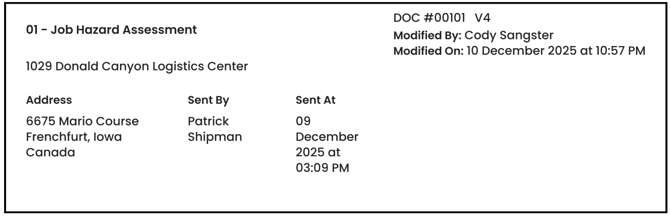
Look at the Header (the very top section) of the document.
-
You will see a note listing the Version Number. This confirms that your printed copy matches the digital record at that moment in time.
Use Cases and Benefits
Why is this feature important? Here are a few ways it helps your daily workflow:
-
Verifying Accuracy: Before starting a job, quickly check the Main Details Page to ensure you aren't using an outdated template or checklist.
-
Team Accountability: If a form has unexpected data, check the Version History to see who last edited it so you can ask them for clarification.
-
Audit Compliance: When archiving records, the PDF Header proves that the document version you saved was the correct one at the time of printing.