.png?width=300&height=77&name=black-logo%20(1).png)
Overview & Explanation
This feature, which we call Form Versioning, automatically keeps a record of changes every time someone edits or adds information to a form. Think of it like a time-stamped logbook for your forms.
Form Versions comparisons can only be accessed through the Corfix Admin, the Corfix Mobile App is currently not supported.
Whenever a key update is made (such as editing the content or adding notes), the system saves a new Version of the form. This allows you to:
-
See exactly when and who made an update.
-
View and download any past version of the form.
-
Compare two different versions to quickly spot the exact changes that were made.
How It Works (Step-by-Step)
The process of tracking changes is mostly automatic, but you can control how the system notifies you or if a new signature is required when a change happens.
1. How Versions are Created
A new Version is automatically created and numbered (e.g., Version 1, Version 2, etc.) any time someone:
-
Edits the form's content (adds or changes an answer).
-
Adds or edits a note on the form.
2. Controlling the Action When a Form is Edited
When a form template is initially set up, the creator can choose what happens when someone edits a completed form:
-
No Action: The version number will increase, but the system does not ask for new signatures or give any special notification.
-
Notification: The version number increases, and the system alerts people that a change was made.
-
Prompt (Ask the User): When the editor saves their changes, a pop-up appears and asks them if a new signature is required.
-
Re-sign: The version number increases, and the system automatically removes existing signatures, requiring the form to be signed again to be considered complete.
Note: If a template is not specifically set up with one of these options, it will default to Notification.
3. Viewing and Comparing Past Versions
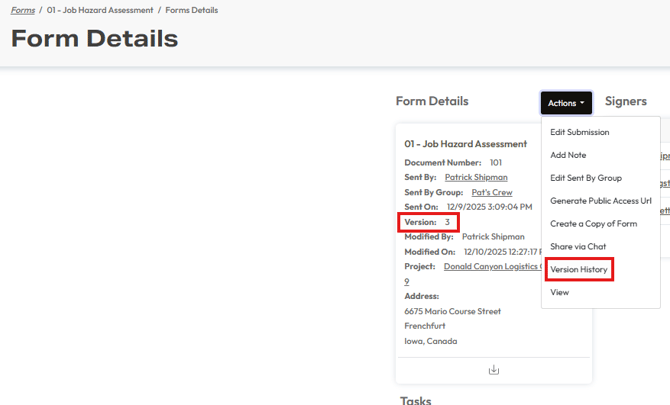
Form Versions can be accessed through the Form Details page under the Actions button;
-
Open the completed form you want to check.
-
Select the Actions dropdown.
- Select Version History (Will only be viewable if there has been at least 2 versions created).
-
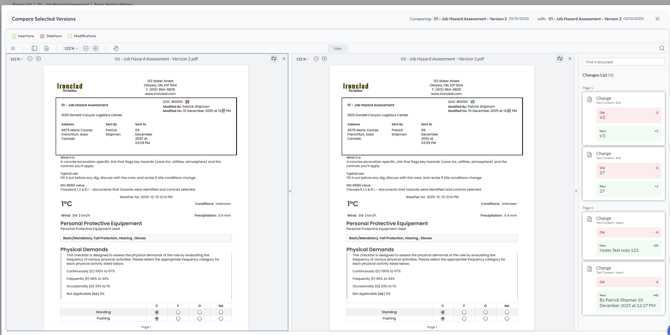
Clicking this will show you a list of all past versions, including the date, time, and the person who made the change.
-
From this list, you can select any two versions and use the built-in comparison tool to highlight the differences between them.
Use Cases and Benefits
This feature adds security and clarity to your form processes. Here are 3-5 specific, practical examples of when you would use this:
-
For Audits and Compliance: If you need to prove exactly what a form looked like at a specific date and time for legal or regulatory requirements, you can access the exact PDF from that historical version.
-
Tracking Corrections: A form was submitted with an error, and a manager later corrected it. You can see the original version and the corrected version to understand what was changed.
-
Reviewing Notes and Comments: Team members might add notes over several days. You can track the history of these notes to see the evolution of the discussion.
-
Security for Important Documents: If a key document requires a signature, setting the form template to Re-sign ensures that any change made after the initial signing invalidates the old signature, forcing the team to review and sign the updated document.
Behavior Changes: What's New?
This feature is a significant improvement in how we handle form changes.
| Old Way (Before Update) | New Way (With Form Versioning) |
| Editing a form often overwrote the old content, making it difficult to find out what was changed. | Every significant edit automatically saves a new, numbered Version (e.g., Version 1, 2, 3...). |
| There was no simple way to view side-by-side changes. | You can now view a complete Versions History list and use the comparison tool to see the exact differences between two versions. |
| All forms had the same default behavior when edited. | Form creators can now customize what happens on edit (No Action, Notification, Prompt, or Re-sign). |