.png?width=300&height=77&name=black-logo%20(1).png)
Warning: Location Accuracy Required
The Corfix timekeeping feature requires a high-accuracy location signal to verify you are at the correct job site. If your settings are set to "Approximate" or "Battery Saving," you may be unable to Punch-In or Punch-Out.
Overview & Explanation
When using the Corfix app to track your work hours, the system uses your phone’s GPS to confirm your presence on-site. If your device settings are not optimized, you may encounter a Diagnostic Info error (as seen in the image below) stating that "Low accuracy" was detected.
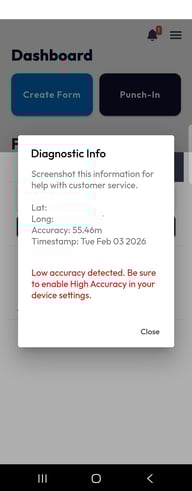
By enabling Precise Location (iPhone) or High Accuracy (Android), you ensure that your time entries are captured correctly without technical delays.
How It Works (Step-by-Step)
For iPhone (iOS) Users
-
Open your phone's Settings app.
-
Scroll down and tap on Privacy & Security.
-
Tap Location Services (ensure the main switch at the top is On).
-
Scroll through your list of apps and select Corfix.
-
Ensure "Allow Location Access" is set to While Using the App.
-
Switch the toggle for Precise Location to On (it should be green).
For Android Users
Note: Steps may vary slightly depending on your phone brand (Samsung, Google, etc.).
-
Open your phone's Settings app.
-
Tap on Location.
-
Ensure the Use location switch is turned On.
-
Tap on App permissions and find Corfix in the list.
-
Set the permission to Allow only while using the app.
-
On the same screen, ensure the toggle for Use precise location is turned On.
-
Optional Tip: Go back to the main Location menu, tap Location Services, and ensure Google Location Accuracy is turned On.
Use Cases and Benefits
-
Faster Punch-Ins: Avoid "Location Not Found" errors when arriving at a busy job site.
-
Accurate Records: Ensure your hours are attributed to the correct project or site location automatically.
-
Safety & Compliance: Helps your company maintain accurate safety records by knowing which workers are on-site during an emergency.
-
Reduced Troubleshooting: Most "Punch-In" issues are resolved instantly by simply turning this setting on.