.png?width=300&height=77&name=black-logo%20(1).png)
Rounding applies only to the first "Punch In" and final "Punch Out" of the workday. To ensure a continuous flow of time and prevent loss of minutes, mid-day project switches are not rounded. These transitions are recorded at the exact timestamp to maintain an accurate, gap-free timeline for both payroll and project costing.
Example Scenario
| Action | Actual Time | System Recording | Logic Applied |
| Start Shift | 7:58 AM | 8:00 AM | Rounded (Shift Start) |
| Switch to Project B | 10:14 AM | 10:14 AM | Exact (Continuous Flow) |
| Switch to Project C | 1:37 PM | 1:37 PM | Exact (Continuous Flow) |
| End Shift | 4:57 PM | 5:00 PM | Rounded (Shift End) |
Note: Only the "bookends" of the workday are subject to rounding rules. All internal activity is captured in real-time to maintain a seamless timeline.
Follow these steps to set up time rounding when workers punch-in and punch-out:
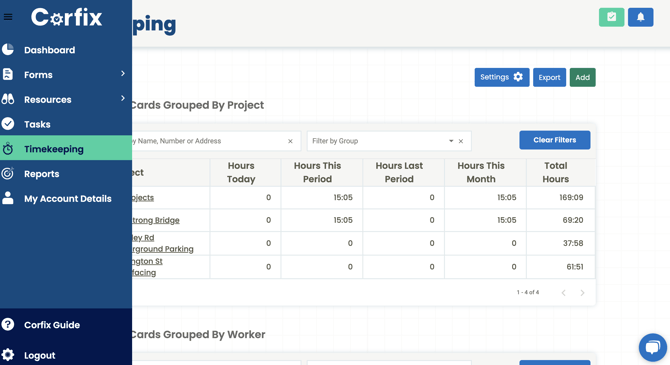
Step 1: Go to "Timekeeping" from the left side menu. Then click "Settings" in the top right.
Step 2: In the section "Round Punch Times (to the minute)" you can enter in the interval of time that you want the punch-in and punch-out times to round to. By default, the punch-in times are rounded up and the punch-out times are rounded up.
Example: If you enter 15 minutes and a worker punches in at 7:03am, their time will round up to 7:15am. If that worker punches out at 4:39pm, their time will round down to 4:30.
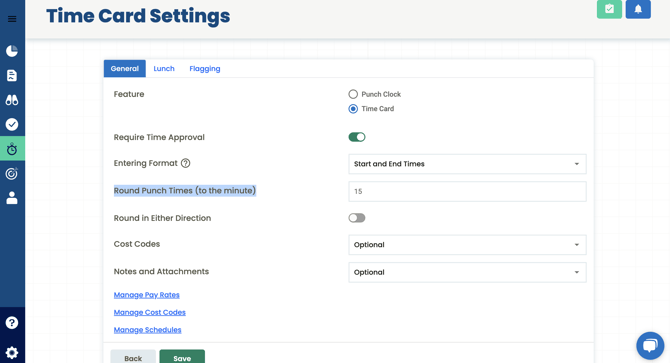
Step 3 (NEW & Optional): You can click on "Round in Either Direction" to have the times round to the nearest time interval without the time rounding down on punch-in and rounding up on punch-out.
Example: If this setting is clicked on and you have your round punch times set to 15, it will round to the nearest 15 minute interval. If a worker punches in at 7:08am, it will round to 7:15am. If a worker punches out at 4:39pm, it will round to 4:45pm.