
To see the Dashboard page, a user needs View Dashboard. Each tab also needs the permission for its module, so someone might see some tabs and not others.
|
Dashboard |
Permission that shows it |
|---|---|
|
Whole Dashboard page |
View Dashboard |
|
Forms |
View all Forms, inside View Forms |
|
Certifications |
View all Certifications, inside View Certifications |
|
Tasks |
View all Tasks, inside View Tasks |
|
Projects |
View Projects |
|
Workers |
View all Workers |
|
Assets |
View Assets |
To find the three View all permissions, click the arrow on View Forms, View Certifications, or View Tasks in a role.
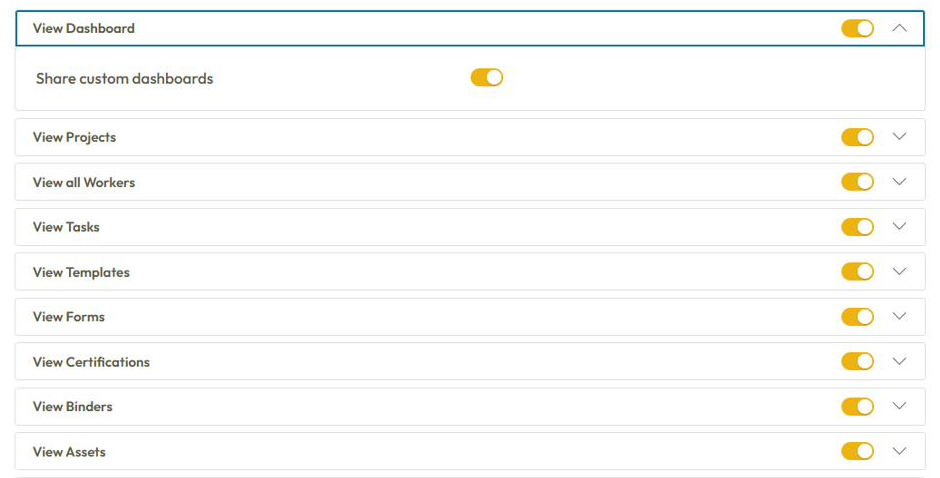
A user with View Dashboard but none of the module permissions won't see any of the six tabs. Custom dashboards are separate and keep using the permissions you've set up today.
Vitals shows company-wide data. Anyone who can see a tab sees the numbers for your whole company on it, whatever group or project restrictions they have elsewhere in Corfix. The filters on each tab let people narrow the view to particular projects, workers, templates, and more, but filters don't limit what someone is able to see. If you'd rather someone didn't see a tab, remove that module's permission. Keep in mind that this also removes their access to that module's full list elsewhere in Corfix.
Two things to do before it arrivesCheck who has access. Permissions are set by role, under My Account Details > Manage Roles. Look at which roles include View Dashboard and which module permissions each one holds. Pay particular attention to roles used by people with group restrictions, since the tabs won't apply them.
Decide which forms count. Five tiles count a particular kind of form: Safety Talks, Near Misses, Incidents, and Hazard Checks on the Forms tab, and Inspections on the Assets tab. Until an admin tells Corfix which templates belong in each, they'll show a question mark and a Set up button. A toolbox talk and a tailgate meeting might both count as safety talks, for example, and a field level hazard assessment as a hazard check. Once the tabs arrive, setting them up takes a couple of minutes in Dashboard Settings, under Company Details on your My Account page, so it helps to have your list ready. The Missed tile works differently: it reads Not set up until you use scheduled forms.

The numbers refresh every hour, and each tab shows when its data was last refreshed. You can print any dashboard or In the coming days, six new dashboards will appear on your Dashboard page: Forms, Certifications, Tasks, Projects, Workers, and Assets. Together they're called Corfix Vitals, and they're built to help you see where to act this week. Each one takes the numbers your crews and admins already enter into Corfix and puts them in front of you, with one click from any number into the record behind it. Vitals is included in your plan, so there's nothing extra to buy.
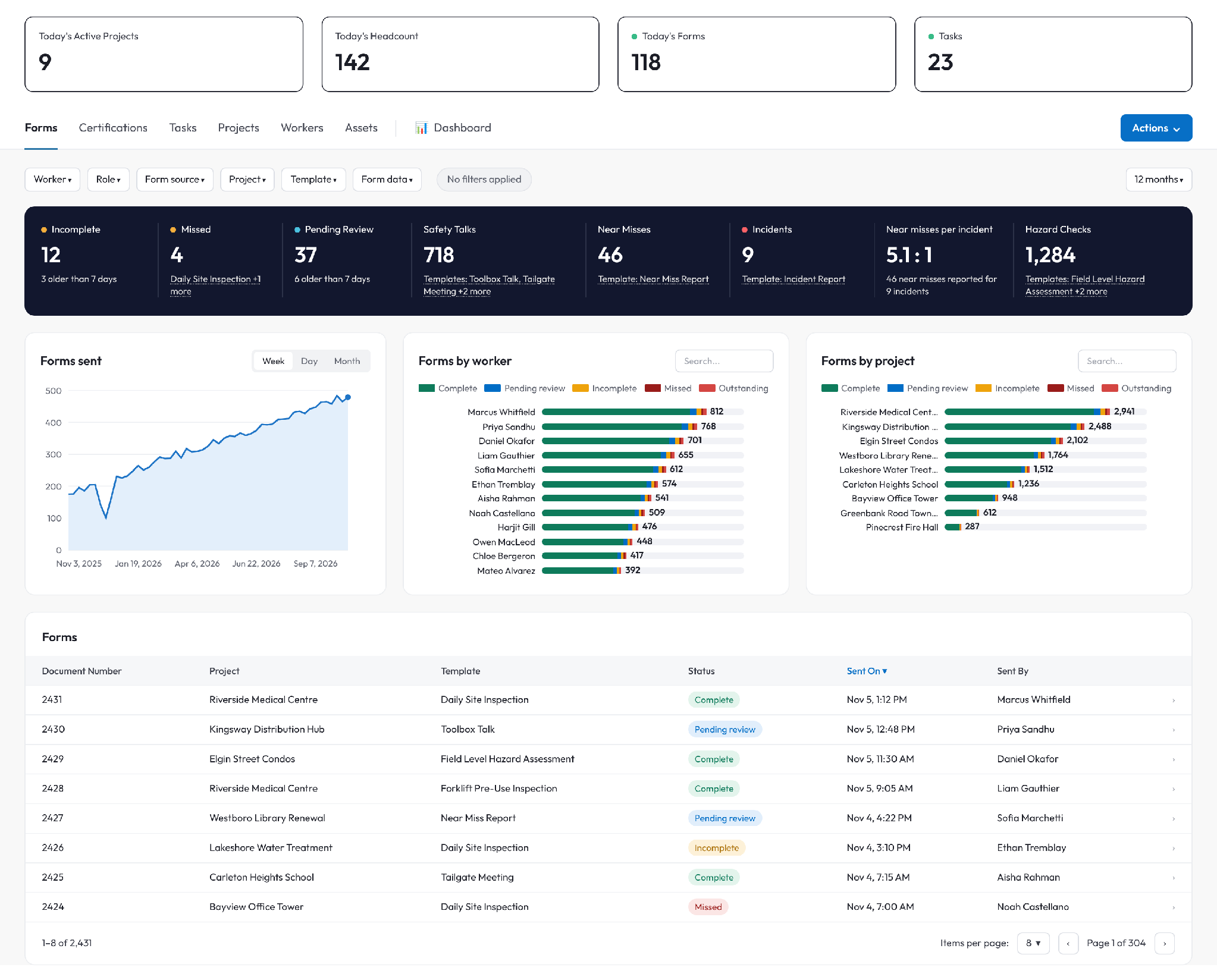
What you'll seeEach dashboard is built around one module and the questions you'd ask about it, so there's nothing for you to build. You'll find them on tabs below your summary cards. Each tab has a strip of tiles across the top, a few charts, and a table. Click a tile and the whole page filters to that number. Click a row in the table and the record opens in Corfix.
Your summary cards stay where they are. If you've built custom dashboards, they'll be on their own Dashboard tab at the end of the row, and they'll work just as they do now.
|
Tab |
What it helps you answer |
|---|---|
|
Forms |
What paperwork is incomplete, missed, or waiting on review, and how old is it? |
|
Certifications |
What share of certifications on file is current, who's expired, and what expires in the next 90 days? |
|
Tasks |
What's overdue, by how much and at what priority, and who has it? |
|
Projects |
Which active sites actually have activity, and which need attention this week? |
|
Workers |
Who's in their first 90 days, and who hasn't done anything in 14 days? |
|
Assets |
What do we have, what state is it in, and who has it where? |
save it as a PDF from the Actions menu.