.png?width=300&height=77&name=black-logo%20(1).png)
Before you start
An admin must turn this feature on first. Workers will not see the Switch Projects button until an admin enables it in the Corfix. This article will summarize how workers can move their time from one project to another in the Corfix mobile app without punching out, and what happens to any outstanding forms when they do.web app under Admin > Timekeeping Settings. If you don't see the button after punching in, ask your admin to check this setting.
Overview
Switch Projects lets a worker who is already punched in move to a different project in one step. Think of it like changing lanes instead of pulling over: the worker's current time card closes out and a new one starts on the next project, with no need to punch out and back in.
When a worker switches, Corfix also checks for any outstanding or incomplete forms so safety paperwork isn't missed on the way to the next job.
How it works
Part 1: Punch in to your first project
The Switch Projects button only appears once you are punched in.
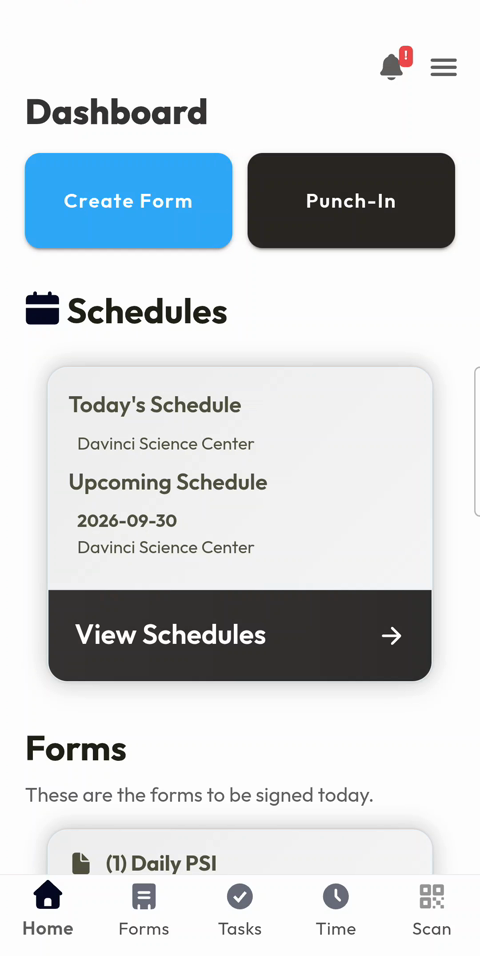
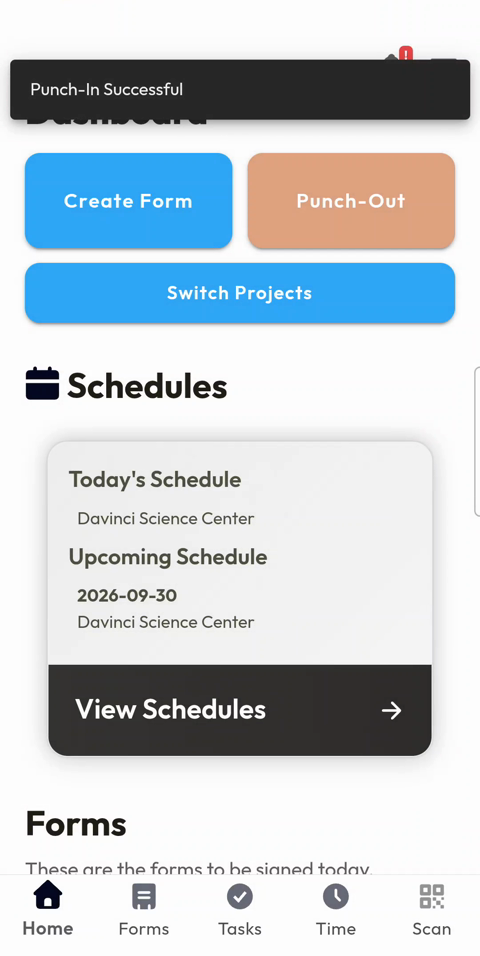
- On the Dashboard, tap Punch-In (Screenshot 1).
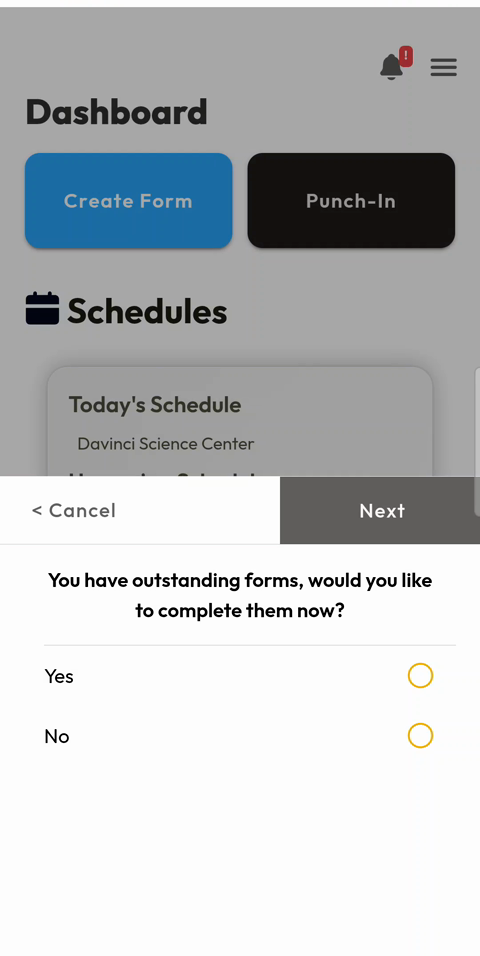
- If you have outstanding forms, you'll be asked "You have outstanding forms, would you like to complete them now?" Choose Yes to complete them or No to continue, then tap Next (Screenshot 2). See Outstanding forms below for how this works.
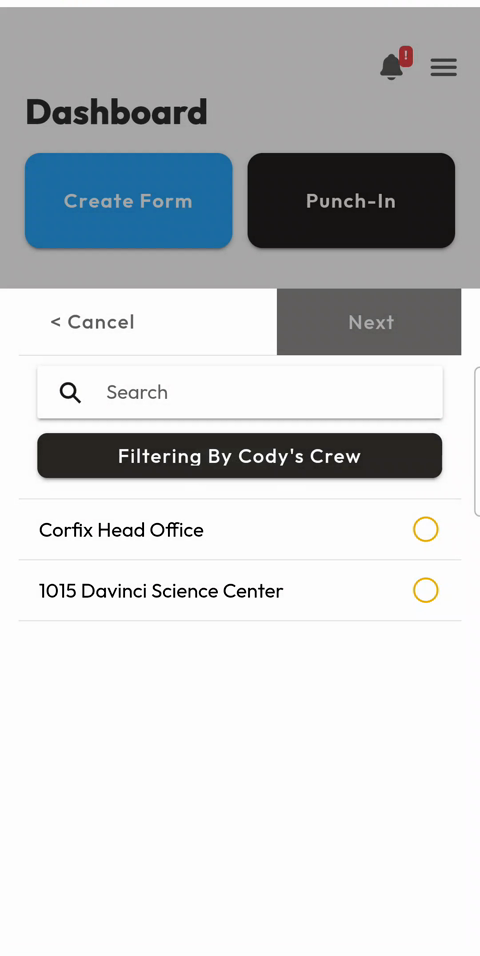
- Pick the project you're starting on, then tap Next (Screenshot 3).
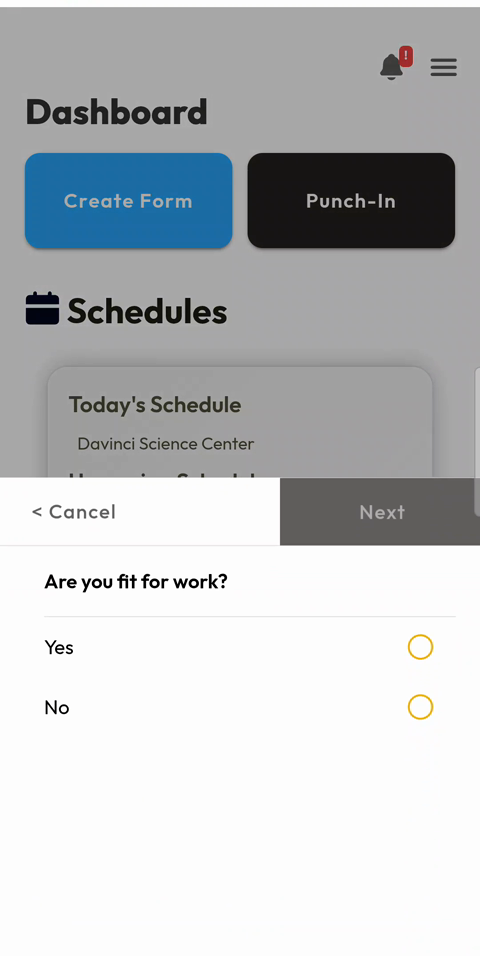
- Answer any punch-in questions, such as "Are you fit for work?", then tap Next (Screenshot 4).
- You'll see Punch-In Successful, and the Switch Projects button now appears under Punch-Out (Screenshot 5).
|
Screenshot 1: Tap Punch-In |
Screenshot 2: Outstanding forms prompt |
Screenshot 3: Choose a project |
|---|---|---|
|
|
|
|
|
Screenshot 4: Punch-in question |
Screenshot 5: Switch Projects appears |
|---|---|
|
|
|
Part 2: Switch to a new project
- On the Dashboard, tap Switch Projects.
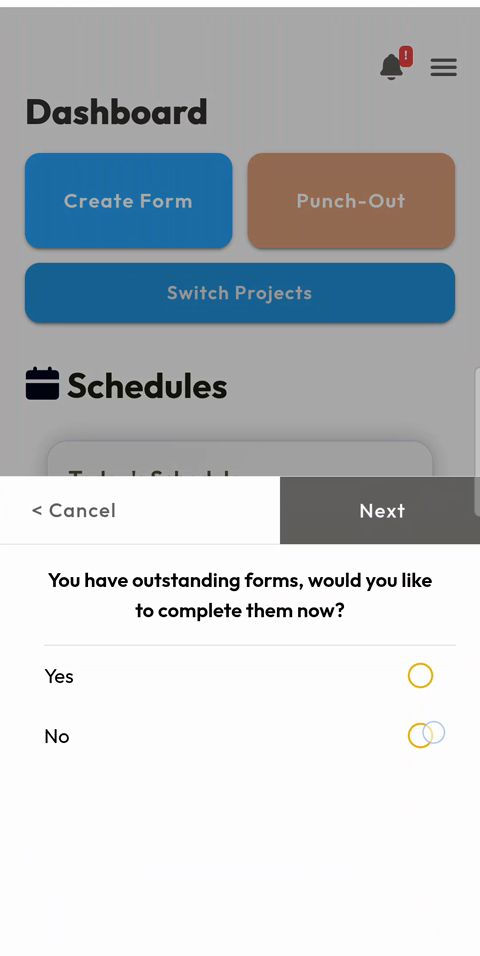
- If you have outstanding or incomplete forms, you'll be prompted to complete them. Choose Yes or No (if allowed), then tap Next (Screenshot 6).
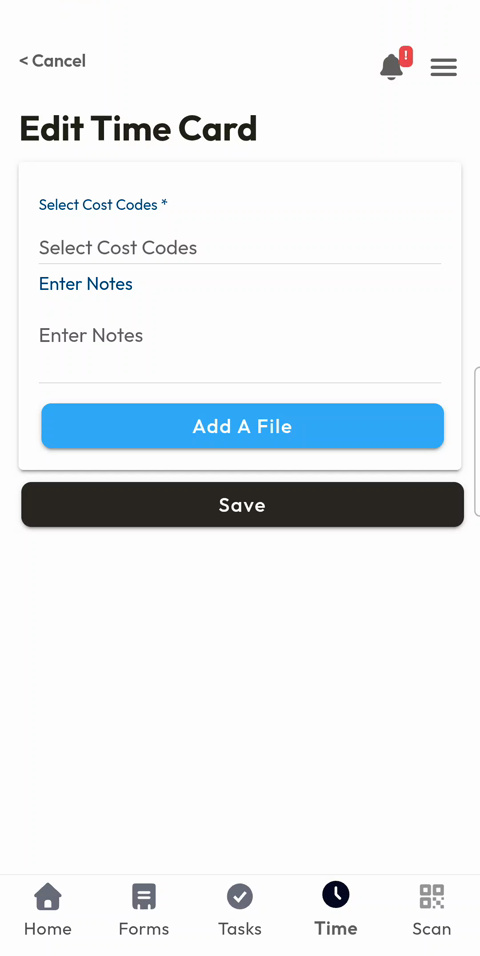
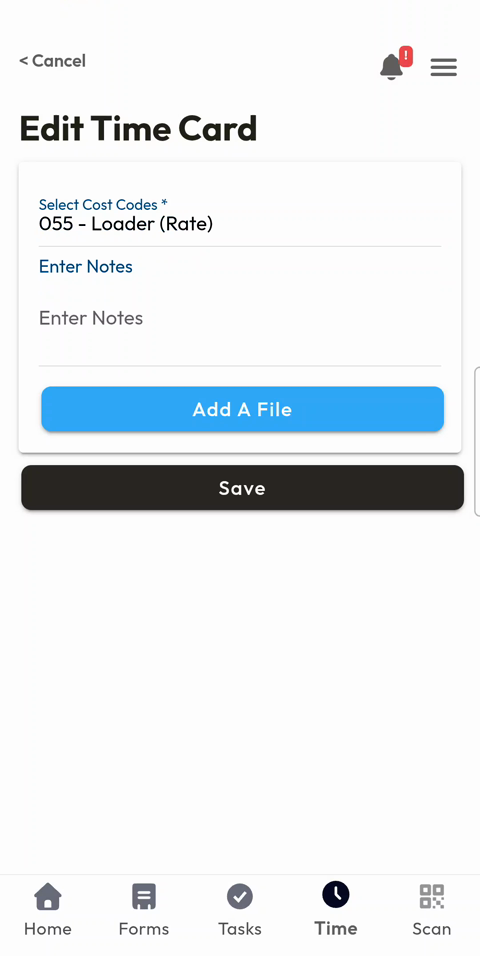
- The Edit Time Card screen opens for the project you're leaving. Tap Select Cost Codes (Screenshot 7).
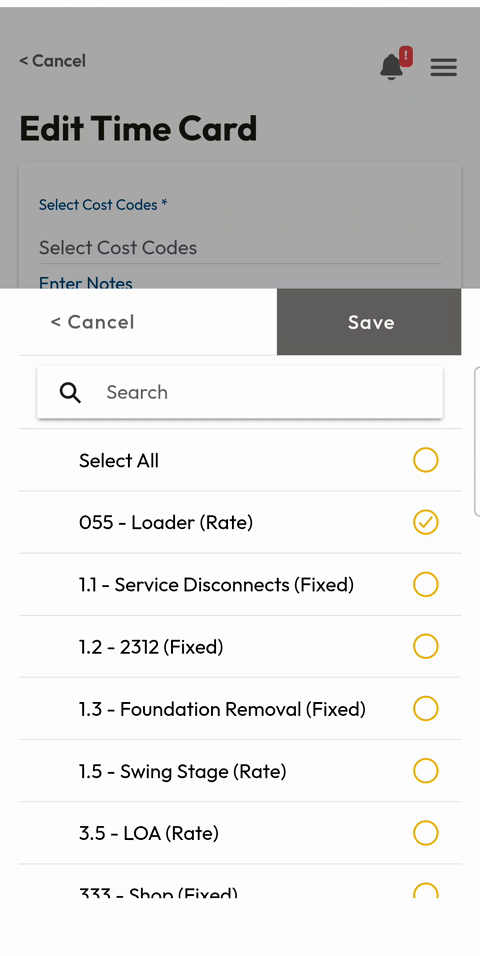
- Pick the cost code for the work you just finished, then tap Save (Screenshot 8).
- Add Notes or tap Add A File if needed, then tap Save (Screenshot 9).
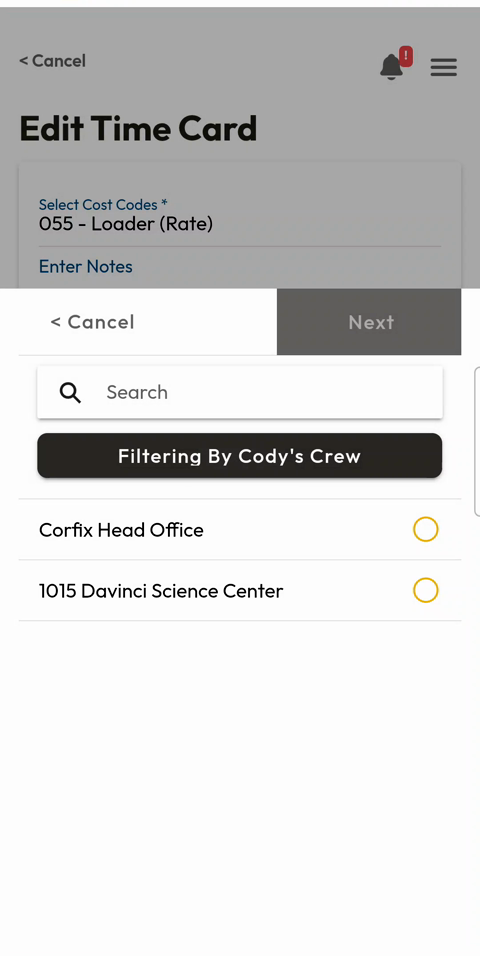
- Choose the new project you're moving to (Screenshot 10).
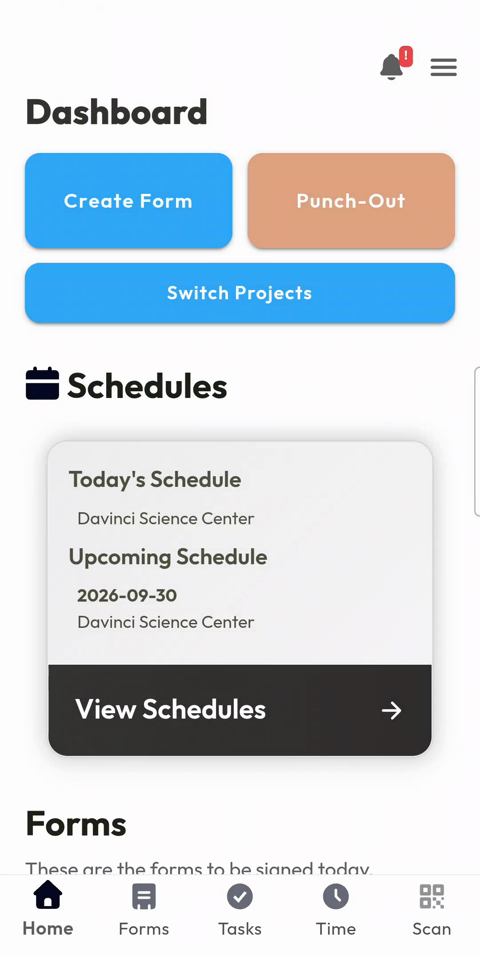
- You're returned to the Dashboard, now punched in to the new project (Screenshot 11).
|
Screenshot 6: Outstanding forms prompt |
Screenshot 7: Edit Time Card |
Screenshot 8: Pick a cost code |
|---|---|---|
|
|
|
|
|
Screenshot 9: Save the time card |
Screenshot 10: Choose the new project |
Screenshot 11: Back on the Dashboard |
|---|---|---|
|
|
|
|
Outstanding forms when switching projects
Any form that is outstanding or incomplete for the worker will be prompted when they tap Switch Projects. What happens next depends on how your company has set up its safety forms:
|
Safety form setting |
What the worker sees |
Can they switch without completing? |
|---|---|---|
|
Optional |
A reminder that they have outstanding forms, with the choice to complete them now |
Yes — they can tap No and continue |
|
Required |
A prompt to fill out their outstanding or incomplete forms |
No — they must complete the forms before switching |
To change whether forms are optional or required, contact your admin or your CSM.
Use cases and benefits
- Multiple sites in one day: a worker finishes a morning at one site and moves to another after lunch, with hours split correctly between the two projects.
- Accurate job costing: each time card is closed out with the right cost code before the next one starts, so the back office doesn't have to fix hours later.
- No missed safety forms: outstanding forms are flagged at every switch, so site-specific paperwork is caught before work starts on the next project.
- Fewer steps for the field: one tap replaces punching out and punching back in.