.png?width=300&height=77&name=black-logo%20(1).png)
In order to be able to copy previous Forms, you must have the setting turned on inside your Template. In your Template go to 'Show Options' at the top right to toggle this setting on, toggle on "Can be Copied".
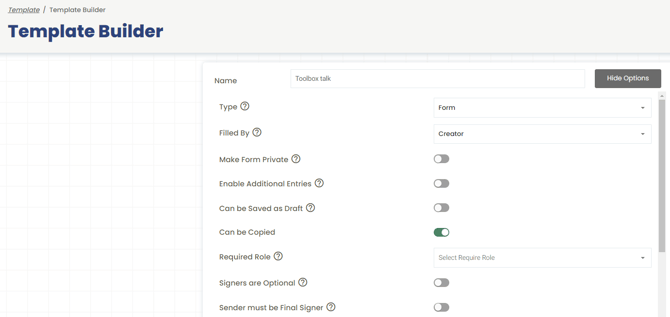
Copying a form on the admin:
Step 1: Click on the "Forms" dropdown from the left side menu and click "All Forms"
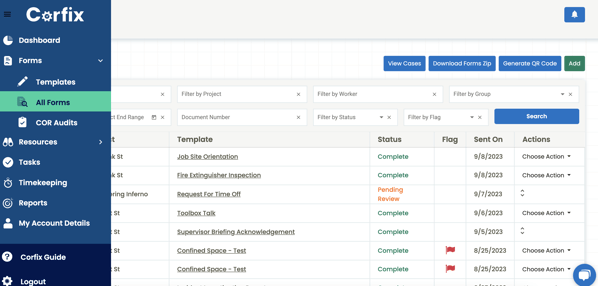
Step 2: Click on the form that you would like to duplicate/copy
Step 3: Click the 'Actions' dropdown at the top of the page

Step 4: Click 'Create a Copy of Form' from the Actions dropdown and the copy of your form will appear
If you or your team notice that the Copy option is missing from the Choose Action menu on a form, it is usually because the template hasn't been set up to allow duplicating.
How to Set it up (Step-by-Step)
-
Navigate to the Templates section in your main menu.
-
Select the specific template you want to update and click Edit from the Choose action dropdown.
- Click on the Show Options button on the top right of the Template Builder.
-
Find the toggle labeled 'Can be Copied' Switch the toggle to On.
-
Click Save at the bottom of the page.
-
Verify: Open a form created from that template. Click the Choose Action button; you should now see Copy as an available option.
Copying a form on the Corfix app:
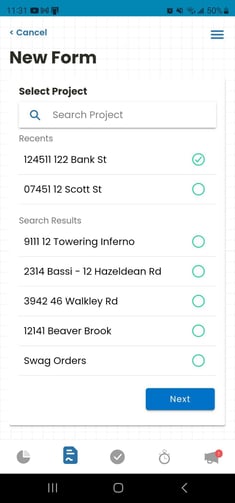
Step 1: Select Project
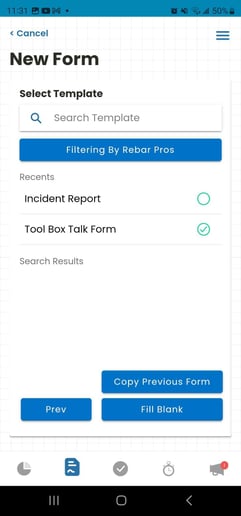
Step 2: Select Template, "Copy Previous Form" will show up if the template is set up to do so, select Copy Previous Form.
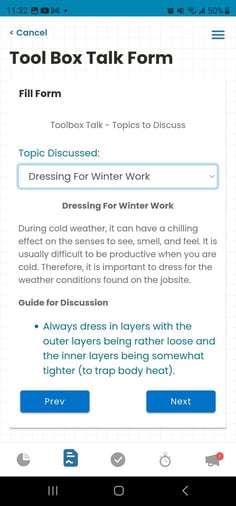
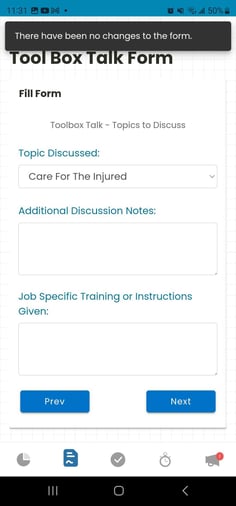
Step 3: Fill out the form, at least one edit is needed for you to proceed. You will receive the below error message if no edit is made.
Use Cases and Benefits
-
Recurring Inspections: If you perform daily site inspections where 90% of the data stays the same, copying the previous day’s form saves minutes of repetitive typing.
-
Crew Logs: Quickly duplicate a crew list from the day before and simply adjust the hours or date.
-
Error Reduction: Copying ensures consistent naming conventions and site details are carried over accurately without manual entry.
-
Field Efficiency: Helps workers on-site complete paperwork faster so they can focus on the job at hand.
Note: At least 1 edit needs to be made on the form in order to finalize it.